Ubuntu is a failure
You might say, "Hey, Eldergeek. Ubuntu is the most popular Linux distribution out there, how can it possibly be a failure?" Just bare with me and allow me to explain my position. By their own admission, Ubuntu creates initiatives to make Ubuntu Linux better and advance Linux. Let's took at their track record. Here are some past initiatives
* Improved audio via PulseAudio
* Seamless video from boot menu to desktop
* 10 Second Boot Times
* Create a better looking desktop than MacOS
* Desktop notification System.
* The Unity Desktop metaphor
And Future Initiatives
* Wayland Video System
* 200 million users in 2 years
What do they have have in common? Ubuntu's track record of half-backed, half-done, left-for broke "improvements". Let's take a look at this list and see where we are.
Pulse Audio is far from perfect. Ubuntu has never lived up to their promise of getting pulse audio working anywhere near seamless for most users.
Ubuntu also said they would perfect going from a graphical boot manager, into a graphical kernel booting with animation into the gdm log in screen. Well, it works for some users and vidoe cards and not for others. Some get blank screens till booting is done. Some cant even boot unless they disable all of the advanced graphic boot stuff. Did it get some love from Ubuntu? Yes it did for 2 or 3 releases. When it turned out the problem was going to take a lot of work to resolve, what did Ubuntu do? Announce another initiative.
Yes, 10 second boot times will come to us in 1 or 2 releases. 6 releases down the road? Some people can boot in 20 seconds. But 10 second boot times have never happened. Canonical/Ubuntu are not working on those issues any more either as a major thurst of where the work is going.
Desktop notifications were going to make interaction with short term status messages beautiful and seamless. It was new, fancy and needed some work. It got it for 2 or 3 releases. Is it anywhere near perfect yet. No? So has that goal been pursued till it was perfected. I think we all know the answer to that question.
Creating a better looking desktop than MacOS. Well there was talk about that. We changed the theme color from orange/brown to purple/orange. A little work in icons and notifications, and of course plenty of changes to make things look more like a mac. But even this goal has been abandoned to chase after a new desktop metaphor.
Unity is getting the love now. But it has had 2 relases to be worked on. And it will get a 3rd release with working on it as the primary focus. But watch out, that will have to stop. There are further initiatives that must be worked on.
Wayland is due for 3 releases of love.
At that point. The 2 years will have passed. Ubuntu COULD have 20 million users right now. With all the half baked work on graphics, sound, boot times, eye-candy and new desktop. Do we really think that Ubuntu is going to gain another 180 million users in the next 24 months? Only if Ubuntu becomes the most popular phone OS ever!
Take a look at this list and ask yourself. Has Ubuntu ever accomplished one of its major long term goals? So far the answer is "No". Ubuntu is a failure. Every time the announce what they are going to fix on the desktop next, I know what system will still be half-done in 2 years time.
2011-10-12

2011-08-31
The Irony of the New Desktop Paragdim
Recently in response to this blog post here. Somone made the remarks that shortcut keys are what makes Unity/Gnome Shell 3 usable. To quote them, "HOWEVER, without providing keyboard shortcuts, you might as well shoot the user in the head."
The fact that Gnome Shell 3 and Unity are much better with shortcuts is quite ironic.
Regular users complain that these environments don't work for them. Power users that champion these systems customize them the make them more effective for their own use. One of these customizations is defining and using shortcut keys. Not just the normal CTRL-F for find or CTRL-C for copy. But highly customized shortcuts like CTRL-ALT-1 is go to desktop 1, CTRL-SHIFT-1 is move window to desktop 1 while remaining on the current desktop and SHIFT-ALT-1 is move window to desktop and switchto desktop 1 at the same time.
The big drive from Desktop Environments like KDE 1, KDE 2, KDE 3, KDE 4, Gnome 1 and Gnome 2 is the desire to create a desktop that users can feel productive in without having to memorize shortcut keys. The great equalizer? Everything being quickly and easily accessible with the mouse.
So when the successors to Gnome 2 (both Gnome Shell 3 and Unity) create desktops for regular users that make using the mouse so inefficient that the only way the desktop is usable and productive again is fur the user to learn shortcut keys, I find it rather funny.
Gnome Shell needs shortcut keys and has tried to create a distraction free environment by removing all of the taskbar items and indicators. Unity needs shortcut keys and has tried to create an environment where they have a mega indicator area with custom written indications. If the app you run does not have a plugin to work with it, then it is a second class citizen.
I say try one of the lighter Window Managers and leave the Desktop Environments behind. They stick to desktop.org standards. Applications that take advantage of trays, docks and task lists will fit right in. Most of these desktop environments also have a 10 to 15 year track record of being productive and easy to use...once you learn a few shortcut keys.
2011-08-04
The Beauty of Slax
It has been more than a year since I have written anything. I want to pick up where I pretty much left off at, working with Slax.
What is Slax? It is a modular live CD/USB Linux distro based on Slackware. The beauty of Slax is in how it is built. First you have to understand how a regular Linux live cd is built. Lets take a look at the process.
Remastering a Live CD.
- Space is set aside on the hard drive and a copy of the Linux that will be on the live CD is put into a folder on the hard drive.
- Using a special process called chroot, the computer is tricked into thinking the series of folder holding the Linux that ends up on the CD is actually a running system and commands are able to be executed on this system.
- Commands are then executed that download and install software. Software can be removed as well. Settings can be configured and other changed can be made.
- When all the changes are done a program that works very much like zip takes what is usually about 2 gigs of software and compresses it down to one file that is about 680 megs in size.
- The 680 meg compressed file, a copy of the Linux kernel the booted system will use and a special boot loader for starting from CD and booting Linux up are all placed together in one directory.
- A bootable ISO CD image file is created from those files.
- A CD is burned from the ISO image.
The Beauty of Slax
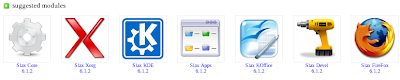
With Slax the system has been broken up into a series of modules. each of these modules is mini compressed file much like the 680 meg file mentioned in the last paragraph. But instead of being 680 megs in size they are more often 10 meg or 20 meg in size. A typical slax system is made up of five or six modules like in the following example:
From left to right: Slax-Core, Xorg-Video, KDE-Desktop, KDE-Apps, KDEOffice, SlaxDev and FireFox.
The above files on a Live CD weigh in at about 210megs, so there is plenty of room for customizing and adding software to the install. At the Slax webesite there are hundreds of modules that can be added to Slax. Most Slackware software packages can be converted to Slax modules. Any package for Slackware 11 or 12 that can be found on LinuxPackages can be used.
The process for customizing a Slax CD is much simpler.
- The Slax CD ISO image file is opened up with an ISO editor that allows files to be added or removed from a ISO image. PowerISO or ISO Magic for Windows or ISO Master for Linux.
- Any slax module can be added to the /modules folder or removed from the /modules folder
- Any files that are not in modules can be put into the /rootcopy folder. Example: to put the file README.TXT on the desktop put it in /rootcopy/root/Desktop.
- Files that are to be available on the CD but not copied the the running system can be put in /extra
- Save the ISO image.
- Burn the ISO image to disk.
Thus what is a 30 minute plus job for any other Live CD is a 5 minute job in Slax.
Slax is a serious tool for computer professionals. It is also serious fun to customize and work with.
2009-09-15
IP address on GDM login page
I have several virtual machines that I keep around for various reasons. To save room I usually 7zip them and burn them to DVD. Then I can keep on my drive just the virtual machines that I am currently using.
Often times when I restore a virtual machine and start it running. I will need to access it from another machine on the network, or in the case of a web server, make a firewall rule that will let me be able to access the service from the Internet. Either way, it is a waste of time to have to log into the virtual machine, bring up a shell and run ifconfig to determine the ip address.
This little trick will make it so the ip address of the computer will show up on the GDM login screen. In a nutshell we will edit the GDM startup script to draw the ip address on the background for the current GDM login theme.
I am a big command line guy. So all of the work we will be doing will be done with a shell. So open up Konsole or Gnome Terminal or whatever shell you typically use.
Step 1: Install imagemagick
sudo apt-get install imagemagick
Step 2: Determine the current GDM theme.
cat /etc/gdm/gdm.conf | grep GraphicalTheme=
Will print the current theme. Make note of what it is. In my case it the output of the above command yields:
GraphicalTheme=Human
So I will be working with the Human theme.
Step 3: Determine the background file name.
cat /usr/share/gdm/themes/Human/Human.xml | grep background
Note that I used the theme name exactly as shown noting both uppercase and lowercase letters. The folder the theme files are in matches the theme name and the configuration file matches the theme name and ends in .xml. The output of the above command yields:
So we can see that the name of the background file is background.png.
Step 4: Rename the original background file so we can use it as a "template" to write on when we generate the background file with the ip address written on it.
sudo cp /usr/share/gdm/themes/Human/background.png \
/usr/share/gdm/themes/Human/background-original.png
Step 5: Edit the GDM startup script to take the original background and write the ip address on it and save it out with the name GDM expects to find for the background. Use whatever editor is on your system to do this. For Gnome it will be gedit. For KDE it will be kate for Xubuntu it will be leafpad.
sudo gedit /etc/GDM/Init/Default
Step 6: Change the section that says:
sysmodmap=/etc/X11/Xmodmap
XMODMAP=`gdmwhich xmodmap`
To read:
sysmodmap=/etc/X11/Xmodmap
cd /usr/share/gdm/themes/Human
convert -pointsize 40 -draw \
"fill yellow text 10,50 \" \
`ifconfig eth0 | awk '/inet addr/{print $2 }'`\"" \
background-original.png background.png
XMODMAP=`gdmwhich xmodmap`
Please note the theme name, what network interface you are using (eth0, eth1, etc) and both the name of the original background file and the background file you writing to.
Step 7: Reboot
After rebooting, in large yellow text you will see the ip address of the computer written on the background of the GDM login screen.
Often times when I restore a virtual machine and start it running. I will need to access it from another machine on the network, or in the case of a web server, make a firewall rule that will let me be able to access the service from the Internet. Either way, it is a waste of time to have to log into the virtual machine, bring up a shell and run ifconfig to determine the ip address.
This little trick will make it so the ip address of the computer will show up on the GDM login screen. In a nutshell we will edit the GDM startup script to draw the ip address on the background for the current GDM login theme.
I am a big command line guy. So all of the work we will be doing will be done with a shell. So open up Konsole or Gnome Terminal or whatever shell you typically use.
Step 1: Install imagemagick
sudo apt-get install imagemagick
Step 2: Determine the current GDM theme.
cat /etc/gdm/gdm.conf | grep GraphicalTheme=
Will print the current theme. Make note of what it is. In my case it the output of the above command yields:
GraphicalTheme=Human
So I will be working with the Human theme.
Step 3: Determine the background file name.
cat /usr/share/gdm/themes/Human/Human.xml | grep background
Note that I used the theme name exactly as shown noting both uppercase and lowercase letters. The folder the theme files are in matches the theme name and the configuration file matches the theme name and ends in .xml. The output of the above command yields:
So we can see that the name of the background file is background.png.
Step 4: Rename the original background file so we can use it as a "template" to write on when we generate the background file with the ip address written on it.
sudo cp /usr/share/gdm/themes/Human/background.png \
/usr/share/gdm/themes/Human/background-original.png
Step 5: Edit the GDM startup script to take the original background and write the ip address on it and save it out with the name GDM expects to find for the background. Use whatever editor is on your system to do this. For Gnome it will be gedit. For KDE it will be kate for Xubuntu it will be leafpad.
sudo gedit /etc/GDM/Init/Default
Step 6: Change the section that says:
sysmodmap=/etc/X11/Xmodmap
XMODMAP=`gdmwhich xmodmap`
To read:
sysmodmap=/etc/X11/Xmodmap
cd /usr/share/gdm/themes/Human
convert -pointsize 40 -draw \
"fill yellow text 10,50 \" \
`ifconfig eth0 | awk '/inet addr/{print $2 }'`\"" \
background-original.png background.png
XMODMAP=`gdmwhich xmodmap`
Please note the theme name, what network interface you are using (eth0, eth1, etc) and both the name of the original background file and the background file you writing to.
Step 7: Reboot
After rebooting, in large yellow text you will see the ip address of the computer written on the background of the GDM login screen.
2009-05-16
Slax...or every jedi must make his own lightsaber
Slax is a portable version of Linux that can be run from a cd-rom, a flash drive, or even launched from a hard drive. What makes Slax so special is how easy it is to modify. Slax is made up of modules and magic.
The by default Slax runs a simple KDE desktop. It can be extended by adding modules to it. Modules can be downloaded from the internet while it is running and installed and used immediately. There is also a "modules" folder for adding modules that will run when slax is started. There is a limited amount of memory and a limit to how many modules can be loaded. There is also a folder called "optional" where you can place modules that you want to load only when they are going to be used. For example you could load one set of modules for reformatting a hard drive (gparted). At another time, load a set of modules for working with encrypted file systems (truecrypt). At another time, load a set of modules for recovering pictures from a memory stick (testdisk).
Then for the magic. There is a folder called "rootcopy" when slax boots the followng happends
A typical Linux guru can install slax on a memory stick, set the stick to be bootable, copy modules into the modules folder. Copy files into the rootcopy folder. Then have a customized copy of linux that does exaclty what they want it to do. That is the beauty of Slax. Any other live Linux distro can be remastered. However it takes much more work and skill to do so. Slax makes it easy and fun.
My copy of Slax has the following tools on it.
The by default Slax runs a simple KDE desktop. It can be extended by adding modules to it. Modules can be downloaded from the internet while it is running and installed and used immediately. There is also a "modules" folder for adding modules that will run when slax is started. There is a limited amount of memory and a limit to how many modules can be loaded. There is also a folder called "optional" where you can place modules that you want to load only when they are going to be used. For example you could load one set of modules for reformatting a hard drive (gparted). At another time, load a set of modules for working with encrypted file systems (truecrypt). At another time, load a set of modules for recovering pictures from a memory stick (testdisk).
Then for the magic. There is a folder called "rootcopy" when slax boots the followng happends
- The kernel loads
- The base modules for linux, x, kde, etc are loaded.
- Services are started
- Modules from the "modules" folder are loaded
- Everything in root copy is copyed to the root of the linux system.
- rc.local is run
- a text prompt or kde session starts.
A typical Linux guru can install slax on a memory stick, set the stick to be bootable, copy modules into the modules folder. Copy files into the rootcopy folder. Then have a customized copy of linux that does exaclty what they want it to do. That is the beauty of Slax. Any other live Linux distro can be remastered. However it takes much more work and skill to do so. Slax makes it easy and fun.
My copy of Slax has the following tools on it.
- ssh to allow remote logins
- x11vnc to allow remote control of the KDE desktop
- dmraid to deal with systems with RAID arrays
- gparted to rezie drive partitions
- partimage to backup and restore partitions
- samba to connect to smb shares for back/restore jobs
- testdisk to recover deleted files on flash drives
- truecrypt for working with encrypted drives
- Download Slax with most of the needed plugins
- Add the remaining plugins and to be able to dual boot Slax and Windows
- How to resize paritions, mount windows folders from the network
- How to backup and restore windows over the network
- How to create a "recovery CD"
- When this series is done you will be able to remotely reboot a windows machine to run Slax and then create a backup image or restore a backimage. This makes it possible in a company to fix a broken windows install. From 1000 miles away you can reboot a broken windows install and replace it with a backup copy to get everything working again.
2008-12-19
Now for something completely different
To pick up from where I left off last time.
In Linux when you decide you don't want to run just a plain text terminal and you want to run with graphics. That brings you into the world of X. For Microsoft they call it Windows. In linux it is called "X". The X server provides a very basic graphic display and handles the mouse and keyboard stuff.
The X graphics are very primitive. The buttons and window borders are clunky. Things look like a beta for Windows 3.1. The nice thing about pure X apps is they run on about any Linux setup you can imagine. To get more advanced looking dialogs, buttons, menus and such, a graphic toolkit is used that provides a cleaner look. The downside is the library has to be installed on the computer for it to work.
If you used every graphic tool kit ever made, it would be hard to keep up. In reality, only a few have ever mattered. There is gtk, the Gimp Tool Kit. Originally written for a program called GIMP. gtk was an easy tool kit to use to give Linux programs a good look. After GTK, there is GTK2, the newer gimp tool kit.
Most people expect a modern computer to provide a WIMPy environment. Winodws, Icons, Menus and Pointers (mouse). Microsoft provides that look for Windows. In Linux you can choose what programs provide that look. They come in two flavors, Window Managers and Desktop Enviroments.
The Window Manager (WM) is very simple. It provides the basics. Things like menus, a way to start programs, the boarder around programs, the title bar of programs. The way to switch between running programs. What the mouse does, what the keyboard does, shortcut keys, right clicks, left clicks, double clicks. All of this is provided by the Window Manager.
The Desktop Envirionment (DE) is Window Manager plus more. They do all that window mangers do. But they can also provide their own graphic tool kit. They can also provide servies for dealing with sound, video playback, networking and more.
With a Window Manager, they don't provide all the tools. For instance a window manager may not provide a taskbar that shows what programs are running. But since any plain X program or GTK program can run on any WM, there are dozens of task bars that you could use if a WM does not have one. Choice is the key word here. Do you want a transparent task bar? Do you want one that runs down the side of the screen or across the bottom? Do you want it to be able to hide? Do you want it to hide automatically or only when you click on it or press a certain key? No matter what it is you want, someone has probably written a taks bar that will do it that way.
So any standard Linux app will run with any Window manager. You have lots of choices in Window Managers. You have lots of choices in apps.
The Desktop Environments do it all. It may not be possible to replace the task bar. Because even if you can hide it. Other programs may not be able to take over the job. The DE wants to do it all. Also, because of the searvies that DE's provide. Like printing and sound. As well as the look and feel. Programs are written that only run on a particular DE. KDE programs need KDE to run, GNOME programs need GNOME to run. You can mix and match. I.E. You can run KDE and have GNOME on the computer but not use it as your DE. Then you can run both KDE and GNOME programs. But the same is true for the WM's. You can run KDE and GNOME apps with many WM's. You might loose a feature or two, but you can do it.
You can go to Window Managers for X to see what is out there. To cut to the chase. Most people run GNOME or KDE and there are holy wars about which one is better. So GNOME has 40% of the pie and KDE has 40% of the pie. The remaining 20% is made up of every thing else. XFCE, Enlightenment, Fluxbox, fvwm, AfterStep, IceWM, and many others.
My first day in Linux introduced me to both Gnome and KDE. After playing around with them for a few days. I settled on KDE, I just liked it better. Gnome had a cleaner look to it. But everything took up a bit more space. Eating up screen real estate I needed. In windows I always customized my envirnment to make working with it more natural for me. I found it easy to customize KDE to make it work like I worked in Windows.
Since that time. I have tried every major DE and WM out there. Where am I at now? I prefer KDE apps over most GNOME apps. When I want a small and fast app, I want something that is GTK2 or GTK. I like light and fast. so my choice of what I run for WM/DE is in this order: Fluxbox, XFCE4, KDE 3, Gnome, Enlightenment, and then KDE4.
I will justify my decision to run Fluxbox in my next post.
There at last I was experiencing my first joy in Linux. I had choices. Instead of just the one look that Microsoft provides for Windows. Or the one choice that Apple provides for OS X. Linux lets you choose if things looks like Microsoft Windows, Mac OS or something entirely different.
In Linux when you decide you don't want to run just a plain text terminal and you want to run with graphics. That brings you into the world of X. For Microsoft they call it Windows. In linux it is called "X". The X server provides a very basic graphic display and handles the mouse and keyboard stuff.
The X graphics are very primitive. The buttons and window borders are clunky. Things look like a beta for Windows 3.1. The nice thing about pure X apps is they run on about any Linux setup you can imagine. To get more advanced looking dialogs, buttons, menus and such, a graphic toolkit is used that provides a cleaner look. The downside is the library has to be installed on the computer for it to work.

If you used every graphic tool kit ever made, it would be hard to keep up. In reality, only a few have ever mattered. There is gtk, the Gimp Tool Kit. Originally written for a program called GIMP. gtk was an easy tool kit to use to give Linux programs a good look. After GTK, there is GTK2, the newer gimp tool kit.
Most people expect a modern computer to provide a WIMPy environment. Winodws, Icons, Menus and Pointers (mouse). Microsoft provides that look for Windows. In Linux you can choose what programs provide that look. They come in two flavors, Window Managers and Desktop Enviroments.
The Window Manager (WM) is very simple. It provides the basics. Things like menus, a way to start programs, the boarder around programs, the title bar of programs. The way to switch between running programs. What the mouse does, what the keyboard does, shortcut keys, right clicks, left clicks, double clicks. All of this is provided by the Window Manager.
The Desktop Envirionment (DE) is Window Manager plus more. They do all that window mangers do. But they can also provide their own graphic tool kit. They can also provide servies for dealing with sound, video playback, networking and more.
With a Window Manager, they don't provide all the tools. For instance a window manager may not provide a taskbar that shows what programs are running. But since any plain X program or GTK program can run on any WM, there are dozens of task bars that you could use if a WM does not have one. Choice is the key word here. Do you want a transparent task bar? Do you want one that runs down the side of the screen or across the bottom? Do you want it to be able to hide? Do you want it to hide automatically or only when you click on it or press a certain key? No matter what it is you want, someone has probably written a taks bar that will do it that way.
So any standard Linux app will run with any Window manager. You have lots of choices in Window Managers. You have lots of choices in apps.
The Desktop Environments do it all. It may not be possible to replace the task bar. Because even if you can hide it. Other programs may not be able to take over the job. The DE wants to do it all. Also, because of the searvies that DE's provide. Like printing and sound. As well as the look and feel. Programs are written that only run on a particular DE. KDE programs need KDE to run, GNOME programs need GNOME to run. You can mix and match. I.E. You can run KDE and have GNOME on the computer but not use it as your DE. Then you can run both KDE and GNOME programs. But the same is true for the WM's. You can run KDE and GNOME apps with many WM's. You might loose a feature or two, but you can do it.
You can go to Window Managers for X to see what is out there. To cut to the chase. Most people run GNOME or KDE and there are holy wars about which one is better. So GNOME has 40% of the pie and KDE has 40% of the pie. The remaining 20% is made up of every thing else. XFCE, Enlightenment, Fluxbox, fvwm, AfterStep, IceWM, and many others.
My first day in Linux introduced me to both Gnome and KDE. After playing around with them for a few days. I settled on KDE, I just liked it better. Gnome had a cleaner look to it. But everything took up a bit more space. Eating up screen real estate I needed. In windows I always customized my envirnment to make working with it more natural for me. I found it easy to customize KDE to make it work like I worked in Windows.
Since that time. I have tried every major DE and WM out there. Where am I at now? I prefer KDE apps over most GNOME apps. When I want a small and fast app, I want something that is GTK2 or GTK. I like light and fast. so my choice of what I run for WM/DE is in this order: Fluxbox, XFCE4, KDE 3, Gnome, Enlightenment, and then KDE4.
I will justify my decision to run Fluxbox in my next post.
2008-12-18
Walnut Creek CDs - My First Taste of Linux
With my fear of Palladiun firmly in place. Before Microsoft could embrace and extend into owning my computer. I thought I would give Linux a try. The local Goodwill provided me a copy of a book on Slackware Linux.. For $2.00 a CD, I ordered 5 CD's from Wallnut Creek. A copy of Slackware 3, Red Hat 3 and three other Linux's I can't recall.
It is so true that the Pioneers take the arrows. It was not pretty back in 1999 to install Linux. Of the 5 CD's, three of them would not install. The two that would were Slackware and Red Hat. I tried them both. After installing. What you end up with is a blinking command prompt asking you to log in.
There were no frills. Linux did not recoginze my sound card, or video card. I had to follow instructions to get a ppp dialup to my local internet provider. From there I was able to determine what video card and sound card I had. Then I had to download drivers for those cards. Compile the source code into binary drivers. Setup my system to use these drivers.
Which still left me at an ugly command prompt. To get pretty Windows 98 style graphics I had to be running X windows. This is the point where you really missed Microsoft. When you picked the correct video card for Windows. It would usually figure out the correct ammount of RAM that the card had, plus just work with whatever monitor you had hooked up to it. You picked a resolution the monitor would support and Windows knew just what to do.
Meanwhile Linux did not. Once I identifed my video card, I had to know how much RAM it had. Then for the monitor I had to know the horizontial and vertical frequencies for it, and the scan rate in mhz. If you guessed wrong you could blow out your monitor. What would happen for sure if you guessed wrong, is that you would not get a neat graphic display. You just ended up at that ugly command prompt.
Boot back to Windows, research some more. Reboot to Linux and filldle with the xconfiguration program again. Once I had sound and graphics I was still missing the scroll wheel. After a few days of googling, I had a solution to that one as well. Soon I had my scroll wheel. I was living large at last!
There at last I was experiencing my first joy in Linux. I had choices. Instead of just the one look that Microsoft provides for Windows. Or the one choice that Apple provides for OS X. Linux lets you choose if things looks like Microsoft Windows, Mac OS or something entirely different.
It is so true that the Pioneers take the arrows. It was not pretty back in 1999 to install Linux. Of the 5 CD's, three of them would not install. The two that would were Slackware and Red Hat. I tried them both. After installing. What you end up with is a blinking command prompt asking you to log in.
There were no frills. Linux did not recoginze my sound card, or video card. I had to follow instructions to get a ppp dialup to my local internet provider. From there I was able to determine what video card and sound card I had. Then I had to download drivers for those cards. Compile the source code into binary drivers. Setup my system to use these drivers.
Which still left me at an ugly command prompt. To get pretty Windows 98 style graphics I had to be running X windows. This is the point where you really missed Microsoft. When you picked the correct video card for Windows. It would usually figure out the correct ammount of RAM that the card had, plus just work with whatever monitor you had hooked up to it. You picked a resolution the monitor would support and Windows knew just what to do.
Meanwhile Linux did not. Once I identifed my video card, I had to know how much RAM it had. Then for the monitor I had to know the horizontial and vertical frequencies for it, and the scan rate in mhz. If you guessed wrong you could blow out your monitor. What would happen for sure if you guessed wrong, is that you would not get a neat graphic display. You just ended up at that ugly command prompt.
Boot back to Windows, research some more. Reboot to Linux and filldle with the xconfiguration program again. Once I had sound and graphics I was still missing the scroll wheel. After a few days of googling, I had a solution to that one as well. Soon I had my scroll wheel. I was living large at last!
There at last I was experiencing my first joy in Linux. I had choices. Instead of just the one look that Microsoft provides for Windows. Or the one choice that Apple provides for OS X. Linux lets you choose if things looks like Microsoft Windows, Mac OS or something entirely different.
Subscribe to:
Posts (Atom)